
Quality Assurance AI Assistant: Smarter SCORM Quality Control for E-Learning Professionals
The Quality Assurance AI Assistant serves as a smarter SCORM quality control tool for e-learning professionals. When an e-learning course includes a graded assessment, every answer, feedback layer, and score must function as intended. Although a course may appear ready on screen, one incorrect setting can confuse learners or affect their final results. Therefore, quality control plays a crucial role in SCORM development.
However, manually checking every question can be time-consuming. The quality checker must complete the assessment with correct answers, repeat it with incorrect answers, and then review the feedback and score. To expedite e-learning SCORM quality control, Content Tree’s production team developed an Assessment Checker within the Quality Assurance AI Assistant.
Hanif, our Tech Builder, is the innovative mind behind this tool. In this interview, he explains how the Quality Assurance AI Assistant compares a published SCORM assessment with its approved storyboard, conducts automated checks, and helps the team identify potential issues more efficiently.
 Hi Hanif! Before we delve into the Quality Assurance AI Assistant, can you explain why quality control is vital when developing an e-learning SCORM file?
A SCORM course may appear flawless, yet issues can lurk behind the scenes. For instance, a correct answer might be marked as incorrect, the wrong feedback layer could appear, or the final score may not align with the learner’s responses.
Thus, e-learning SCORM quality control involves more than ensuring the course opens correctly. We must also verify that the assessment logic, feedback, and scoring adhere to the approved storyboard. Ultimately, this ensures a fair and reliable experience for learners.
Before this tool’s introduction, how did the production team verify all those assessment elements?
The process was quite manual. A quality checker would open the published course, answer every question correctly, submit the assessment, and review the results. Then, the checker would re-evaluate the course using incorrect answers.
As you can imagine, this becomes tedious when an assessment contains numerous questions. It also requires the checker to maintain focus throughout the entire process, as it is easy to overlook a feedback layer or misinterpret a score. That’s why we sought a more systematic approach to support the team.
This leads us to the Quality Assurance AI Assistant. What exactly is the Assessment Checker, and how does it assist?
The Assessment Checker is an automated SCORM testing tool integrated into our Quality Assurance AI Assistant workflow. It reads the approved answers from the PowerPoint storyboard, opens the published course in a browser, and tests how the assessment responds.
In simple terms, it compares the expected outcomes in the storyboard with the actual results in the SCORM file. This process helps us quickly identify scoring or feedback issues. Additionally, it provides the team with a clear question-by-question record, allowing us to focus our review effectively.
That sounds useful! Can you guide us through the overall process before we examine each step?
Certainly! First, the tool reads the storyboard and extracts the question-and-answer information. Next, it runs the published story.html file locally, allowing the course to open in a controlled browser environment. The automated browser then completes the assessment in two different test modes. Finally, the results display in a question-by-question table that can also be exported to Excel.
Since everything connects in one workflow, the Quality Assurance AI Assistant manages the repetitive checking while keeping the results visible to the team. We can monitor the test as it runs, review the findings, and determine what needs correction.
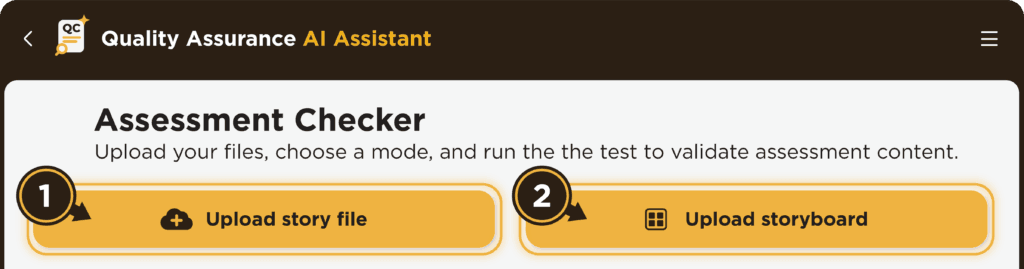
Upload Story File and Storyboard
Question-and-Answer Information Extracted
You mentioned that the tool reads the storyboard. How does the Assessment Checker identify the correct answer signals?
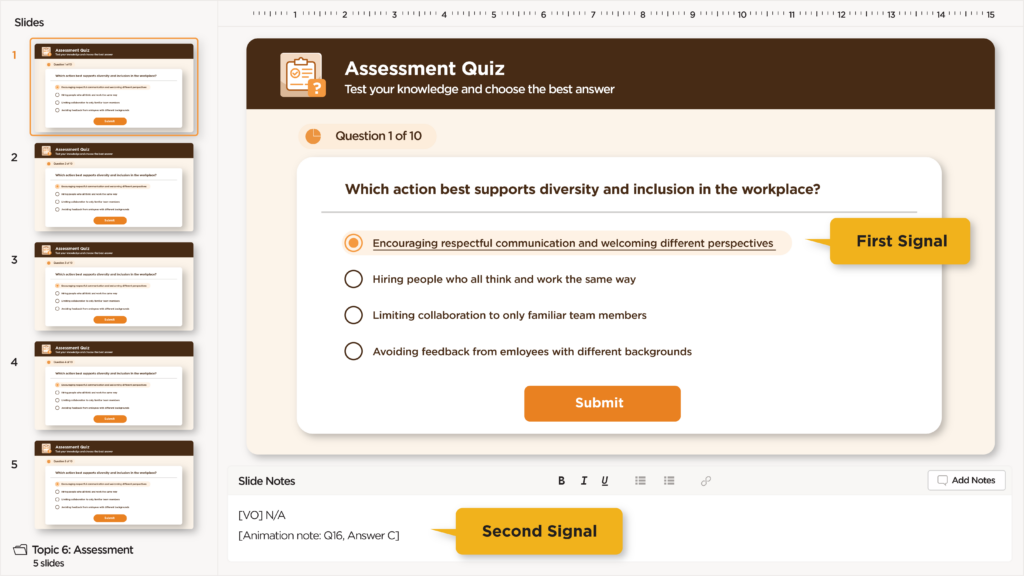
The Assessment Checker searches for two answer signals on the storyboard. It verifies the answer stated in the slide notes, such as an animation note containing ‘Answer: X’, and the answer underlined on the slide. From there, it generates a data file containing the extracted question information. If the file already exists from a previous run, we can easily reuse it.
The storyboard contains the answer information, but how does the tool determine whether it has confidently identified the correct answer?
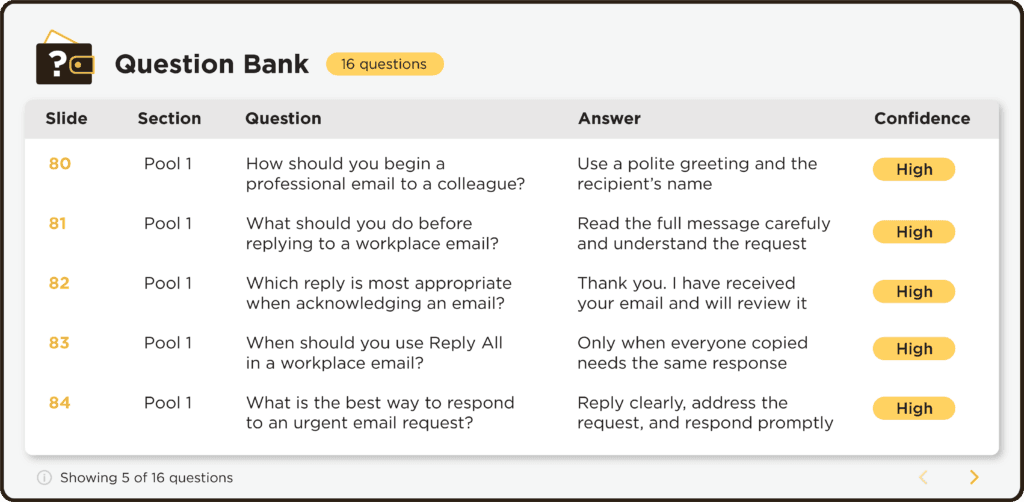
After analyzing the storyboard, the tool assigns a confidence color to each question. White indicates high confidence because the answer in the animation note matches the underlined answer. Yellow signifies medium confidence, as only one of those answer signals is available.
Red indicates that the question requires attention. A low-confidence result means the tool couldn’t find either answer signal, while a conflict arises when the animation note and the underlined answer don’t match. In such cases, the instructional designer reviews the question, updates the storyboard, and uploads it again. This step is crucial because the automated check can only be as accurate as the source information it receives.
Once the storyboard information is prepared, how does the team configure and run the test?
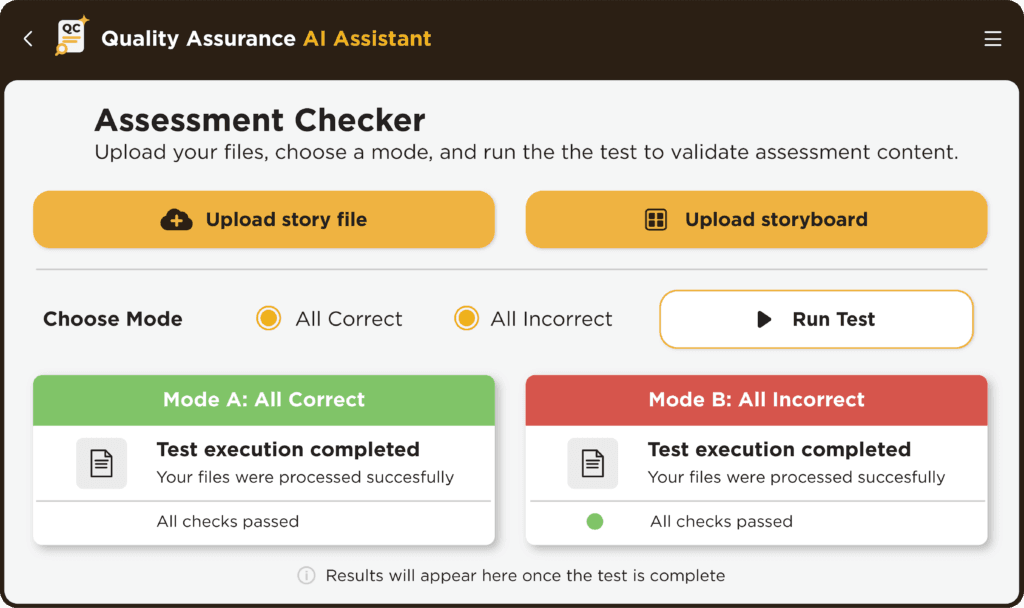
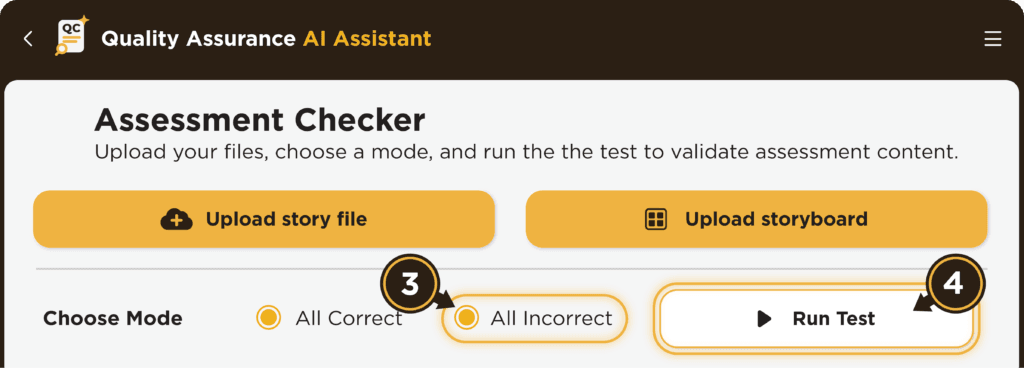
It’s straightforward. We select the number of questions we want to test and choose Mode A, Mode B or both. We can also run the browser in the background without displaying the window, which speeds things up. Then, we click ‘Run Selected Tests’.
As the test runs, live logs appear for both modes, so we can see the progress in real time. Although we can run either mode on its own, we usually recommend running both because they check two different sides of the assessment logic.
Choose Mode and Run the Test
You mentioned two test modes. What does each one check?
Mode A selects the correct answer for every question according to the storyboard. After submitting the assessment, the tool opens the review screen and verifies that the ‘Correct’ feedback appears for each question. If everything is configured correctly, the expected score is 100%.
Mode B functions oppositely. It deliberately selects an incorrect answer and checks whether the ‘Incorrect’ feedback appears. In this scenario, the expected score is 0%.
By running both modes, we can confirm that correct answers receive rewards while incorrect answers incur penalties. More importantly, this approach can uncover a misconfigured feedback layer or broken scoring logic that might be overlooked if we tested only one answer path.
Once both tests conclude, how does the tool display the results?
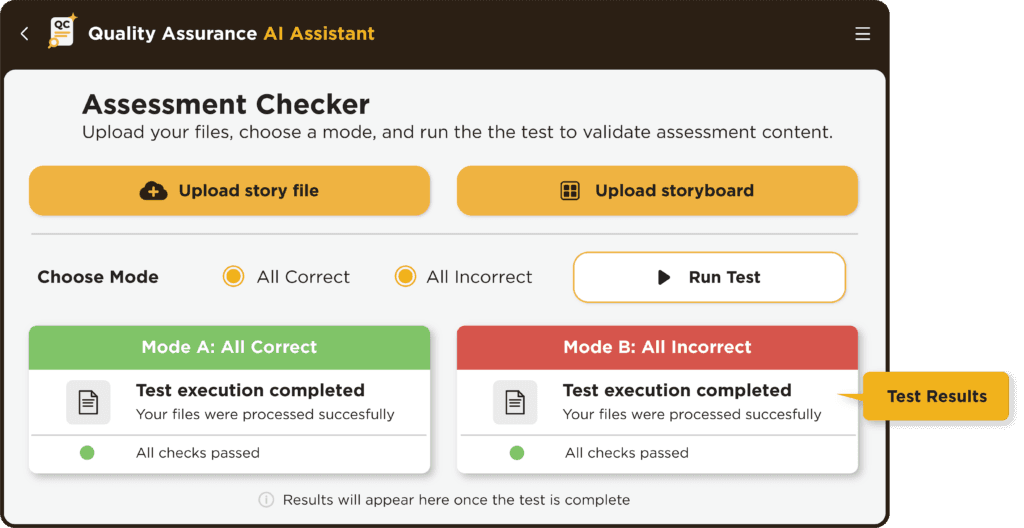
The results appear at the bottom of the screen, showing whether every question has passed or failed in each test mode. If a question fails, the tool automatically captures a screenshot and displays it beside the result. That gives us clear visual evidence of what happened instead of showing only a general error message.
We can also export the complete results as an Excel report. This makes it easier to document the QC outcome, share the issue with the relevant designer or developer and run the test again after the correction has been made. The screenshots are temporary and are automatically deleted when the tool is closed.
Test Results
With so much of the checking automated, does the Quality Assurance AI Assistant replace the need for human quality checking?
Not at all. The tool is designed to strengthen the QC process, not replace professional judgement. It’s very useful for repetitive, rule-based checks such as confirming feedback and expected scores. However, a human reviewer still needs to look at the overall learning experience, language, visuals, usability, accessibility and the client’s requirements.
Human review is also essential whenever the tool shows medium, low or conflict confidence at the storyboard stage. So, the best approach is to combine automation for speed and consistency with human judgement for context and quality.
Finally, what does this smarter approach to SCORM quality control mean for the future of e-learning production at Content Tree?
For us, it shows how the right kind of automation can improve e-learning production while keeping the process transparent and accountable. By using the Quality Assurance AI Assistant for e-learning SCORM quality control, we can reduce repetitive work, identify assessment issues earlier and give the team clearer evidence for follow-up.
We’ll continue refining the workflow as we learn from each project. The aim is to spend less time repeating predictable checks and more time improving the learner’s experience. Faster QC is certainly helpful, but the real goal is to deliver learning that is accurate, consistent and reliable.